
Whether you’re logging a support call, checking a laptop is worth upgrading or working out which cable you need, it helps to know exactly what hardware you have. This guide shows you how to find your computer’s specification on Windows and Mac, and how to identify the most common ports and connectors.
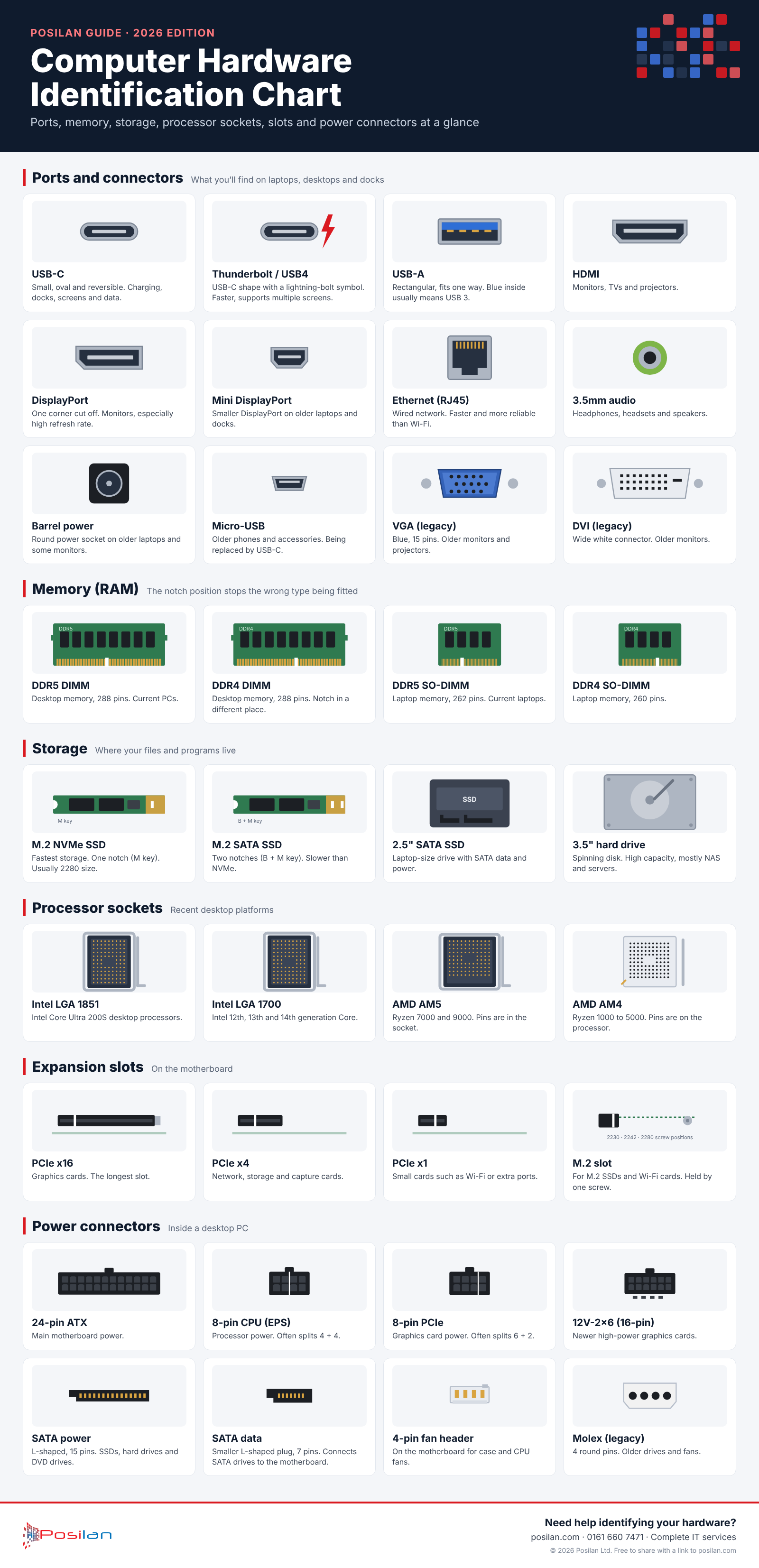
Download the full-size chart (PNG) · Free to share with a link to posilan.com
How to find your computer’s specification
Windows 11 and Windows 10
- The quick way: open Settings, then System, then About. You’ll see the processor (CPU), installed memory (RAM), device name and Windows version.
- Storage: open Settings, System, then Storage to see your drives and how much space is free.
- Graphics: open Task Manager (Ctrl + Shift + Esc), choose Performance and select GPU.
- Everything in one place: press the Windows key, type System Information and open it. It lists the make and model, BIOS version, processor, memory and much more.
- Serial number: open Terminal or PowerShell and run
Get-CimInstance Win32_BIOS | Select SerialNumber. This is the number your IT support or the manufacturer will ask for.
Mac
- Click the Apple menu and choose About This Mac to see the model, chip, memory, serial number and macOS version.
- For full detail, hold the Option key, click the Apple menu and choose System Information.
Identifying common ports and connectors
| Port | What it looks like | What it’s used for |
|---|---|---|
| USB-C / Thunderbolt | Small, oval and reversible. Thunderbolt ports have a lightning-bolt symbol. | Charging, docks, displays, fast storage. Thunderbolt and USB4 support higher speeds and multiple screens. |
| USB-A | Flat and rectangular, only fits one way up. Blue inside often means USB 3. | Keyboards, mice, memory sticks and older accessories. |
| HDMI | Wide and flat with angled corners. | Monitors, TVs and projectors. |
| DisplayPort | Like HDMI but with one corner cut off. | Monitors, especially high-resolution or high-refresh screens. |
| Ethernet (RJ45) | Square socket with a clip, larger than a phone plug. | Wired network connection, faster and more reliable than Wi-Fi. |
| 3.5mm audio | Small round socket. | Headphones, headsets and speakers. |
| VGA | Blue, trapezoid-shaped with 15 pins and two screws. | Older monitors and projectors. Now largely replaced by HDMI and DisplayPort. |
Inside the computer: the main components
- Processor (CPU): does the computer’s thinking. For business use, look at the generation as well as the name, for example an Intel Core Ultra or AMD Ryzen from the last few years.
- Memory (RAM): lets you run several programs at once. 16GB is a sensible minimum for a business laptop today.
- Storage (SSD): where your files and programs live. Solid-state drives (SSDs) are far faster than older hard drives.
- Graphics (GPU): built into most business laptops, and only needs to be separate for design, video or CAD work.
- TPM 2.0: a security chip needed for Windows 11 and features such as BitLocker encryption.
Is it time to upgrade?
Windows 10 support ended in October 2025, so any PC that can’t run Windows 11 no longer gets security updates. If your computers are more than five years old, slow to start or can’t be upgraded, replacing them is usually more cost-effective than nursing them along.
We supply business laptops, desktops and accessories at business pricing, set up and ready to use when they arrive. See our hardware supply page, or get in touch for a quote.
Already a Posilan client? Send us your device details on a support ticket and we’ll tell you whether it’s worth upgrading.